Legalsense can send scheduled notification emails to users, keeping them informed about firm-wide or personal performance and missing hours without them needing to check Legalsense themselves. Manage these email notifications under Settings → Notifications.
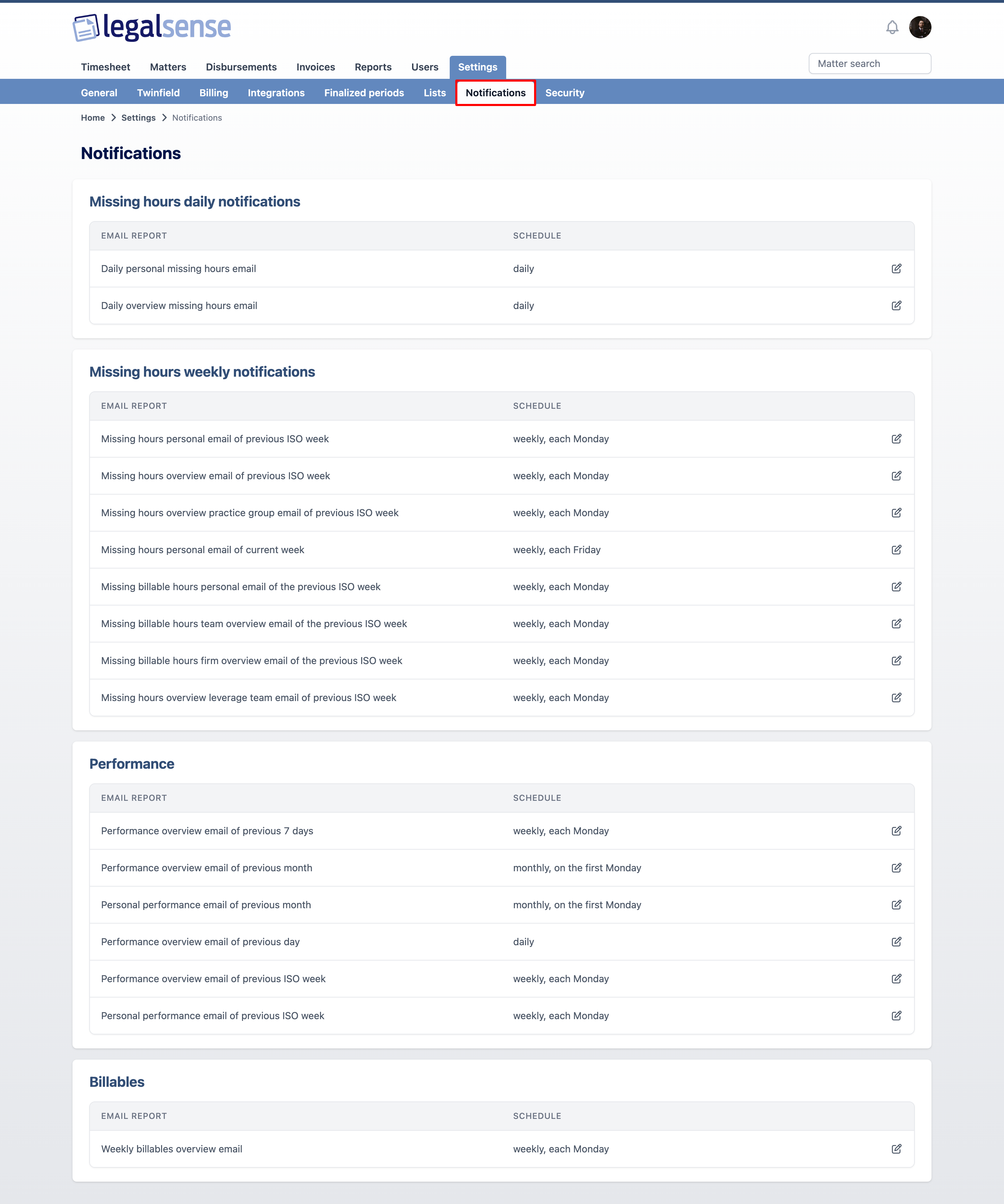
Notifications overview in Settings, listing the four configurable notification email types.
Note: This is different from the Notification Center, the in-app notification popover you open from the bell icon. For that feature, see the article ↪ Notifications in Legalsense.
Notification types
Legalsense divides the notifications into four different categories:
Missing hours daily notifications
| Report Name |
Description |
| Daily personal missing hours email |
Alerts selected users when logged time falls short of expected hours based on the presence roster. Can be configured to include missing hours from: today, the previous workday, or the past five workdays. |
| Daily overview missing hours email |
Selected users receive an overview email with an overview of all users with missing hours daily. |
Missing hours weekly notifications
| Report Name |
Description |
| Missing hours personal email of previous ISO week |
Selected users receive a personal email with missing hours in the previous ISO week (Monday-Sunday). |
| Missing hours overview email of previous ISO week |
Selected users receive an overview email with all users that are missing hours in the previous ISO week (Monday-Sunday). |
| Missing hours overview practice group email of previous ISO week |
Selected users receive an overview email with all members of their practice group that are missing hours in the previous ISO week (Monday-Sunday). |
| Missing hours personal email of current week |
Selected users receive a personal email with missing hours (at the time the email is scheduled) in the current week. |
| Missing hours overview leverage team email of previous ISO week |
Selected users receive an overview email with all members of their leverage team that are missing hours in the previous ISO week (Monday-Sunday). |
Performance
| Report Name |
Description |
| Performance overview email of previous 7 days |
Selected users receive a copy of the performance overview report of the previous 7 days. |
| Performance overview email of previous month |
Selected users receive a copy of the performance overview report of the previous month. |
| Personal performance email of previous month |
Selected users with targets in the current year receive a monthly personal performance report. |
| Performance overview email of previous day |
Selected users receive a copy of the performance overview report of the previous day. |
| Performance overview email of previous ISO week |
Selected users receive a copy of the performance overview report of the previous ISO week (Monday-Sunday). |
| Personal performance email of previous ISO week |
Selected users with targets in the current year receive a weekly personal performance report. |
Billables
| Report Name |
Description |
| Weekly billables overview email |
Supervisors in the selected groups receive an email with an overview of all billable items of the matters under their supervision (at the time the email is scheduled). |
Setting up a notification
Click the edit icon next to a notification under Settings → Notifications to configure it.
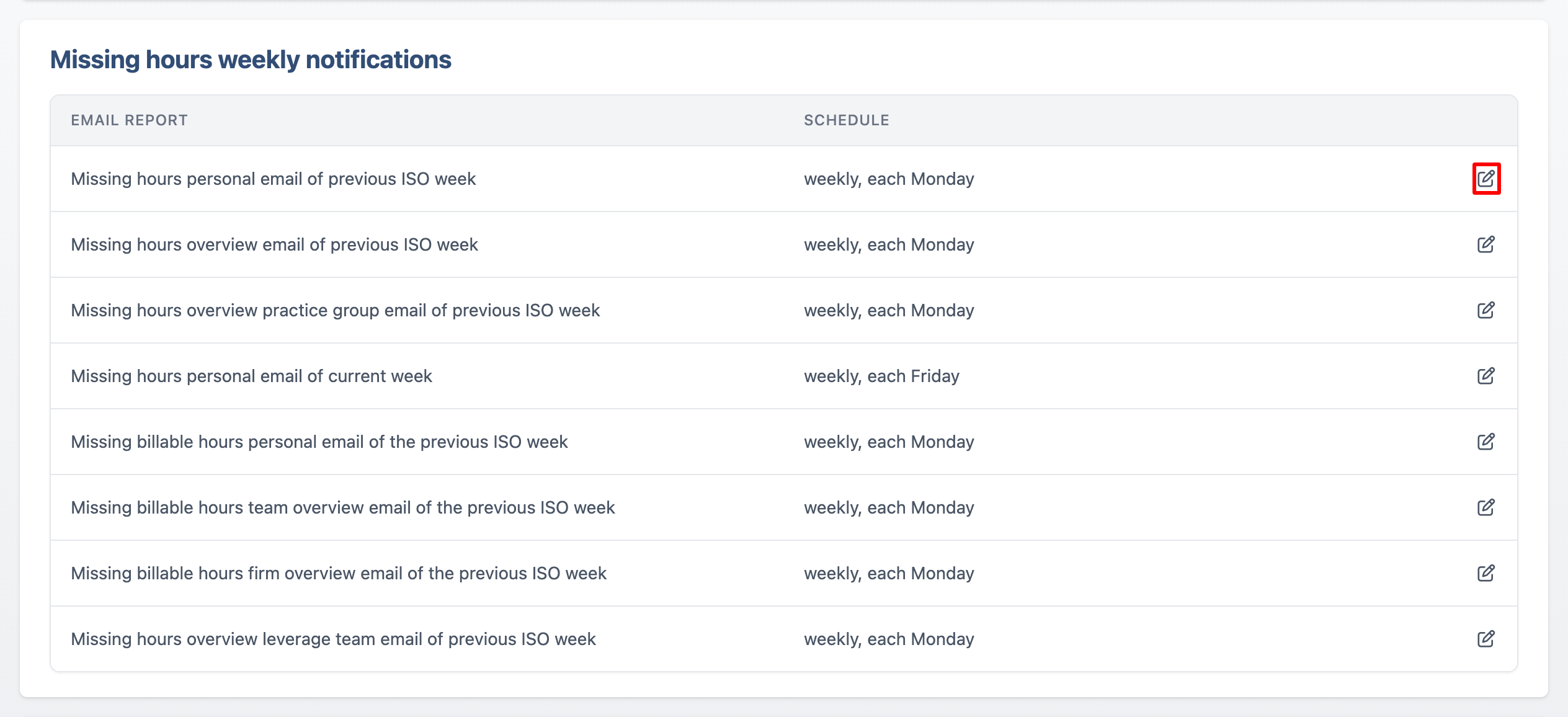
Edit button next to a notification.
On this page you can configure:
-
Schedule: set the day of the week and time to send the notification. You can currently select only one day, not multiple days.
-
Run at: the time at which Legalsense sends the notification email.
-
Users: choose whether to send the notification to specific users or to all users. To select specific users, click their names (hold Ctrl on Windows, or Cmd on Mac, to select multiple), then click the right-arrow icon to move them to the Chosen users list. To include everyone, click Choose all. To remove a user from the Chosen users list, select them and click the left-arrow icon.
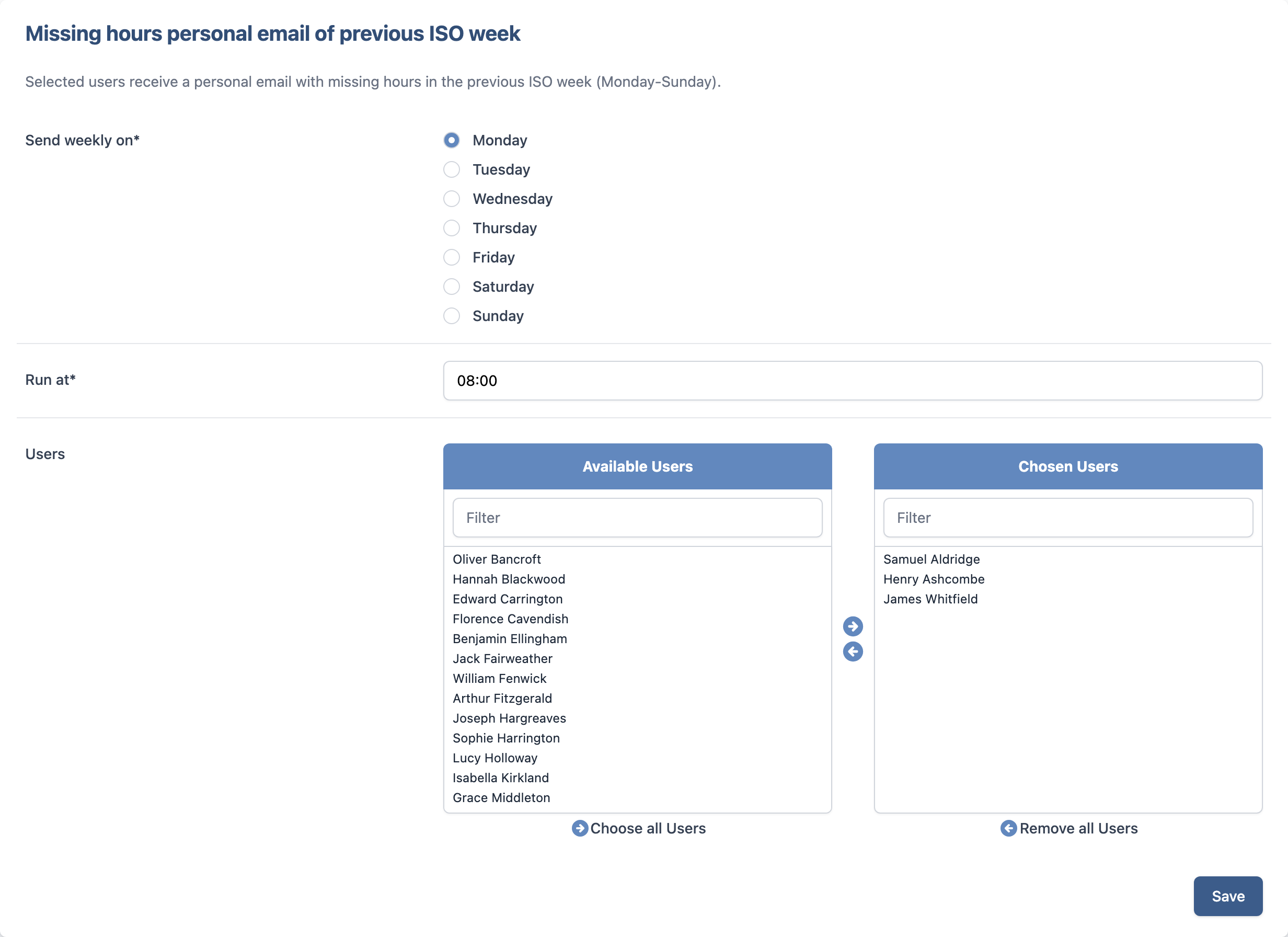
Notification configuration screen, showing the schedule and user selection fields.
The notifications configured for a specific user are also visible when you view that user in Legalsense.
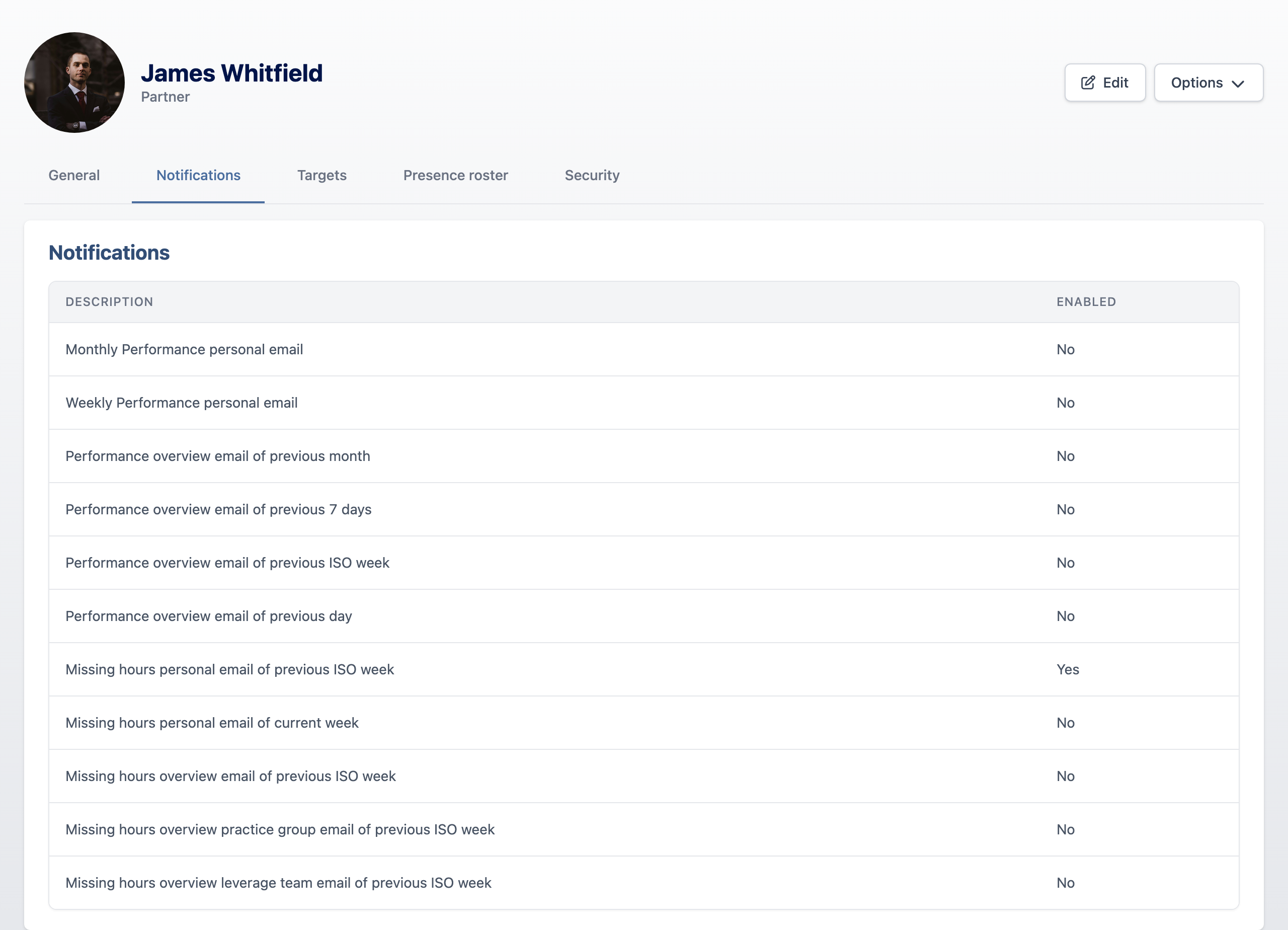
User profile showing the notifications configured for that user.

Comments
0 comments
Please sign in to leave a comment.