The performance report shows, per user, how much time they wrote in a period, what that time is worth, and how far along they are with their targets. This article explains what each column means and which other columns your firm can add.
Find the report under Reports → Performance. Firm performance, Practice group performance, Leverage team performance and Office performance all show the same columns.
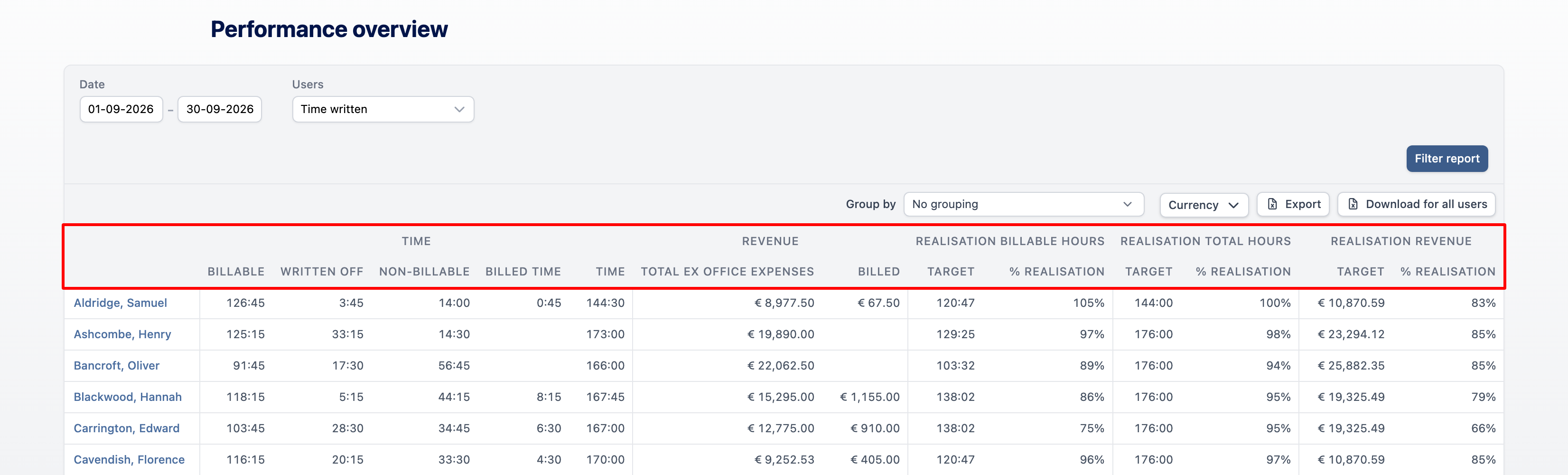
Firm performance with the default columns: Time, Revenue and the three Realisation groups.
Good to know
- All figures are based on the date of the time entries. Billed, for example, is the amount billed for time written in the selected period, not the amount of the invoices dated in that period.
-
Personal performance shows one user per month and has its own set of columns. So do the performance overview emails and the personal performance emails (see the article ↪ Notifications). By default, they show the same columns as above, with a few fewer in the emails.
- The Realisation columns are only shown when targets are activated for your firm. See the article ↪ Targets.
- The columns are the same for every user in your firm. Only Legalsense support can change them; see Changing the columns below.
Default columns
Time
| Column |
What it shows |
| Billable |
Billable time on billable matters. For partly written-off time entries, only the part that wasn't written off counts. |
| Written off |
Time written off on billable matters: time entries marked as non-billable (NB) or write-off (W), and the written-off part of partly written-off entries. |
| Non-billable |
Time written on non-billable matters. |
| Billed time |
The part of Billable that has been billed. |
| Time |
All time written in the period. |
Time on a non-billable matter only counts as Non-billable. A non-billable time entry on a billable matter counts as Written off. See the article ↪ Billable (B), non-billable (NB), zero rate (0) and write-off (W) for the time entry statuses.
Revenue
| Column |
What it shows |
| Total ex office expenses |
The value of the time written, without office expenses: the billed amount for billed time, the amount on the draft invoice for time on a draft, and the expected amount for time that hasn't been billed yet. |
| Billed |
The amount billed for the time written in the period. |
Realisation billable hours, total hours and revenue
Each of these groups has two columns:
-
Target: the part of the user's target that falls in the selected period. A target is spread evenly over the working days between its start and end date.
-
% Realisation: how much of that target the user has reached.
| Group |
Target |
% Realisation |
| Realisation billable hours |
The billable time target |
Billable as a percentage of the target |
| Realisation total hours |
The total time target. If the target has no total time, the hours of the user's presence roster are used. |
Time as a percentage of the target |
| Realisation revenue |
The amount target |
Total ex office expenses as a percentage of the target |
Other columns you can add
Your firm can add the columns below, or replace default ones with them. The names are the column headings as they appear in the report.
Time
| Column |
What it shows |
| Billable % |
Billable as a percentage of Time: the share of all time written that is billable. |
| Written time |
Billable plus Written off. |
| Billable (WIP) |
Billable time that hasn't been billed yet. WIP time shows the same. |
| Billable time |
Like Billable, but also counts billed time on matters that were made non-billable afterwards. |
| Zero rate |
Time entries marked as zero rate (0) on billable matters. |
| Non-billable hours (excl. leave) |
Non-billable, without time written on leave activities. |
| Leave |
Time written on leave activities. Absence shows the same. |
|
Time 0-30 days old to Time older than 365 days
|
Billable time, split by how many days ago (counted from today) it was written. |
Amounts
| Column |
What it shows |
| Total inc. office expenses |
Total ex office expenses plus office expenses. |
| Office expenses |
The office expenses on the time written. |
| Billed office expenses |
The part of the office expenses that has been billed. |
| Work in progress |
The value of the time that hasn't been billed yet, including time on draft invoices. |
| WIP amount |
Total ex office expenses minus Billed. |
| Work in progress revalued |
The work in progress, multiplied by the WIP percentage of each matter. See the article ↪ Work in progress (WIP). |
| Average hourly rate |
Total ex office expenses divided by the billable time. |
|
Paid, Unpaid, Outstanding, Uncollectable
|
For the time that has been billed: how much of it has been paid, how much hasn't, and how much of the unpaid amount is outstanding or marked as uncollectable. |
| Tax |
The VAT on the billed time. |
|
Amount 0-30 days old to Amount older than 365 days
|
Total ex office expenses, split by how many days ago (counted from today) the time was written. |
Counts and dates
| Column |
What it shows |
| Number of matters |
The number of matters the user wrote time on. |
| Number of clients |
The number of clients the user wrote time for. |
| Invoices last 12 months |
The number of invoices dated in the last 12 months on which the user's time from the period was billed. |
| Timestamp of the last time entry |
The date of the user's last time entry in the period. |
Targets and capacity
| Column |
What it shows |
| Fte |
The user's FTE. |
| Target roster time |
The hours on the user's presence roster in the period. |
| Expected hours factor |
The user's expected hours factor. See the article ↪ Expected hours factor. |
| Expected hours Target and % Realisation
|
The hours expected from the user: the presence-roster hours minus absence, multiplied by the expected hours factor, and Billable as a percentage of that. |
| Second Target and % Realisation
|
The same as the billable time and amount targets, for the second billable time target and amount target (Billable time target 2 and Amount 2 on the user's target). |
Most columns can also show year-to-date figures, from 1 January up to the end of the selected period. Their heading then starts with YTD.
Changing the columns
- Decide which columns you want, and in which groups, for each of these:
- Firm performance, Practice group performance, Leverage team performance and Office performance (one set for all four).
- Personal performance.
- The performance overview emails.
- The personal performance emails.
- Send the list to Legalsense support. Support changes the columns for your whole firm.
Note: Support can also set the default grouping of the report, and sort users by function instead of by name.
Comments
0 comments
Please sign in to leave a comment.