Many lists in Legalsense let you select rows and change them all in one go, for example to give a group of matters a new supervisor or to finalize a batch of draft invoices. This article lists the bulk actions per list, what they change, and when Legalsense doesn't apply them. For how filtering and selecting rows works in general, see the article ↪ Working with data tables.
Good to know
- Select the rows with the check boxes in front of them, then click a button in the bar above the list. If you click a button before selecting anything, Legalsense asks you to select at least one row.
- The check box in the header row selects only the rows on the current page. A page shows up to 100 rows in the lists of matters, clients and contacts, up to 1,000 rows in Timesheet → Search, and up to 500 rows in the other lists. To change more rows, use the filters so the rows you need fit on one page, or work through the pages one by one.
-
Export downloads every row that matches the filters, not only the rows you selected.
- Which buttons you see depends on your permissions and on the features your environment uses. If a button you need is missing, ask your Legalsense administrator.
- Legalsense checks every selected row. Depending on the action, it either skips the rows it can't change and tells you which ones, or changes nothing and explains why.
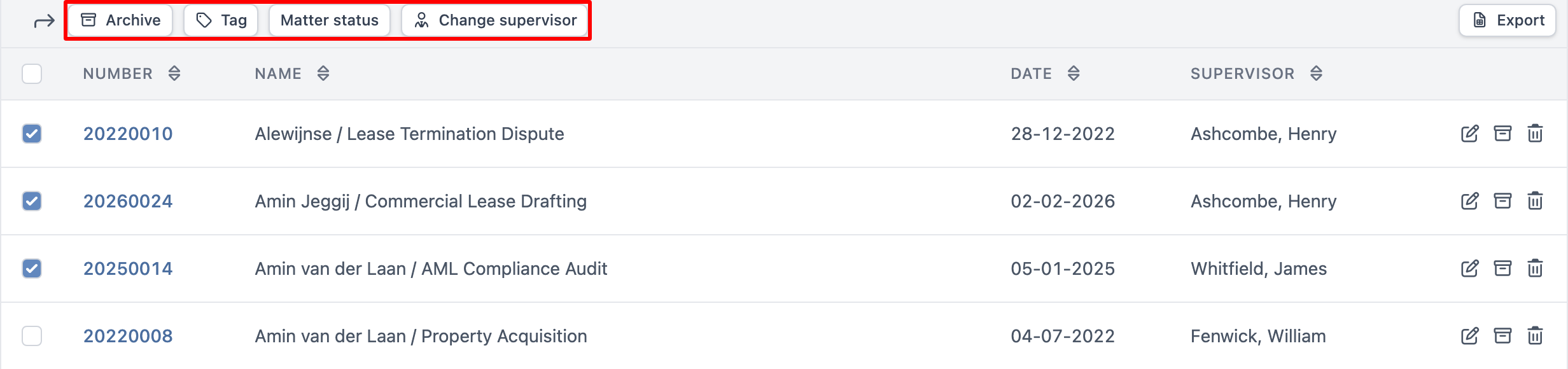
The matter list with three matters selected and the buttons for the selected matters above the list.
Matters
Go to Matters → Matters. The buttons depend on the Status filter: archiving needs Active, unarchiving needs Archived, and draft matters have no bulk actions.
| Button |
What it does |
| Archive |
Archives the selected matters. Fill in the Archived date and, if you want, Archive notes; Legalsense assigns the archive numbers. A matter with draft invoices can't be archived, and neither can a matter with unbilled time entries or disbursements, unpaid invoices or a trust account balance, unless your firm's settings allow it. See the article ↪ Archiving. |
| Unarchive |
Makes the selected matters active again. Choose Retain archive number or Clear archive number. A matter whose client is archived can't be unarchived. |
| Tag |
Adds tags to the selected matters. Select Clear to remove the tags instead. |
| Matter status |
Gives the selected matters one of your firm's matter statuses. Only shown if your firm has more than one matter status. See the article ↪ Client and matter status. |
| Change supervisor |
Sets a new matter supervisor or billing supervisor, or clears them. Archived matters are skipped. See the article ↪ Matter management. |
Clients
Go to Matters → Clients.
| Button |
What it does |
| Tag |
Adds tags to the selected clients, or removes them with Clear. |
| Client status |
Gives the selected clients one of your firm's client statuses. Only shown if your firm has more than one client status. |
A client's account manager is the account manager of its contact. To change it for many clients, use Change account manager in the list of contacts.
Go to Matters → Contacts.
| Button |
What it does |
| Applicable VAT |
Choose a VAT option in the menu. Legalsense applies it to the selected contacts straight away, without asking you to confirm. All selected contacts must be debtors, so filter on Is debtor first. See the article ↪ VAT rates. |
| Tag |
Adds tags to the selected contacts, or removes them with Clear. |
| Change account manager |
Sets a new account manager on the selected contacts, or clears it. Archived contacts are skipped. See the article ↪ Contact management. |
Legal aid matters and AML
- In Matters → Legal aid matters, New RvR invoice opens a new invoice for the Raad voor Rechtsbijstand with the selected matters filled in. You need permission to create invoices. See the article ↪ Legal aid matters.
- In Matters → AML, Download as PDF downloads the AML forms of the selected matters as one PDF file, and Download as ZIP downloads them as a ZIP file.
Files on a matter
Open a matter and click File management in the Files card. Select files and folders, then click:
-
Download ZIP to download them as one ZIP file. Folders are included with their contents.
-
Move to folder to move them to another folder. Legalsense doesn't move a folder into itself or into one of its subfolders, or a file into a folder that already has a file with the same name.
The folder page isn't split into pages, so the check box in the header row selects everything in the folder.
Invoices
Go to Invoices. The list stays empty until you click Search.
| Button |
What it does |
| Tag |
Adds tags to the selected invoices, or removes them with Clear. |
| Finalize |
Finalizes the selected draft invoices. Legalsense checks each invoice as it does when you finalize it on its own, and lists the invoices it couldn't finalize. |
| Mark as draft |
Makes the selected finalized invoices drafts again. Not possible for invoices with payments, credited invoices, or invoices already synchronized to your accounting software. See the article ↪ Unfinalizing an invoice. |
| Mark as paid |
Marks the selected finalized invoices as paid on the Payment date you fill in. Draft invoices can't be marked as paid. |
| Download |
Downloads the selected invoices as PDF files: one file per invoice in a ZIP file, or all invoices merged into one file, with or without logos. |
| Send |
Sends the selected finalized invoices by email, or through Peppol or Inexchange if your environment uses them. Sending runs in the background. To send by email, every selected invoice must be finalized and have a PDF, and none may have an unfinished saved email. See the article ↪ Sending invoices by email from Legalsense. |
| Edit |
Opens the first selected draft invoice. Use Previous and Next to go through the others. Only possible when all selected invoices are drafts. |
| Update |
Update with new entries adds time entries and disbursements from a period you choose to the selected draft invoices. Update fields changes the invoice date, invoice template or accounting date of the selected draft invoices. Both run in the background. See the article ↪ Invoice management. |
| Delete |
Deletes the selected draft invoices. Finalized invoices can't be deleted. |
Debtor overview
Go to Invoices → Debtor overview. Each debtor has its own check box to select all of that debtor's invoices.
| Button |
What it does |
| Tag |
Adds tags to the selected invoices, or removes them with Clear. |
| New reminders |
Creates reminder letters for the selected debtors with the template you choose. Choose whether to include all open invoices of those debtors, only the selected invoices, or only overdue invoices. Only debtors with reminders turned on get a letter. Legalsense creates the letters in the background. See the article ↪ Reminders. |
| Download |
Downloads the existing reminder letters of the selected invoices, as a ZIP file or as one document. |
| Mark as paid |
Marks the selected invoices as paid, as in the list of invoices. |
| Send reminder emails |
Sends a reminder email for each selected invoice with the email template you choose. Each invoice must be finalized, have a PDF and have no saved email draft, and its debtor must not be excluded from collections management. Sending runs in the background. |
Billing workflow tasks
If your firm uses the billing workflow, go to Invoices → Tasks to handle the tasks assigned to you. This list isn't split into pages.
| Button |
What it does |
| Pass responsibility |
Passes the selected tasks to another user, with a comment. Select Back to me to have them come back to you afterwards. |
| Task done |
Completes the selected tasks, so the invoices move to their next step. |
| Bill later |
Moves the invoices to the Bill later step. |
If one of the selected tasks can't be changed, Legalsense changes none of them.
In Invoices → Tasks overview, users who manage the workflow can also use Set next task to move the invoices to a step they choose, with an optional responsible user and comment. This runs in the background. Finalize, Update and Delete work as in the list of invoices. See the article ↪ Billing workflow.
Time entries
Go to Timesheet → Search and search for the time entries you want to change.
| Button |
What it does |
| Mark as |
Makes the selected time entries billable or non-billable (written off), zero rate or not, or billed elsewhere or not. The change applies straight away, without asking you to confirm. If your firm uses write-off options, you can also write off part of the time. See the article ↪ Writing and editing time. |
| Change time entries |
Changes the activity, matter/submatter, timekeeper or date of the selected time entries. To change the timekeeper, you need permission to edit other users' time entries. |
| Delete time entries |
Deletes the selected time entries after you confirm. |
Change time entries and Delete time entries don't work on time entries that are on an invoice, draft or finalized, or that are billed elsewhere. Mark as doesn't work on time entries that are on a finalized invoice or billed elsewhere. None of them work on time entries on an archived matter, and changing the date, deleting and Mark as aren't possible in a finalized period. To change time entries that are on a draft invoice, edit them on the invoice. See the article ↪ How to partially bill or write off written time on a draft invoice.
Draft time entries
Go to Timesheet → Drafts.
| Button |
What it does |
| Approve |
Turns the selected drafts into time entries. You can only approve drafts for which you're the reviewer. Legalsense approves the drafts it can, and lists the ones it couldn't. |
| Hand off |
Gives the selected drafts a new reviewer, who gets a notification. |
| Delete |
Deletes the selected drafts for which you're the reviewer. |
See the article ↪ Draft time entries.
Users
Go to Users → Users.
| Button |
What it does |
| Send welcome email |
Sends the welcome email to the selected users. Archived users and users whose end date has passed are skipped. |
|
Make selectable or Make unselectable (under More actions…) |
Sets whether the selected users appear in dropdown lists, for example when you choose a timekeeper. |
|
New function (under More actions…) |
Gives the selected users a new function, from the Begin date you fill in. |
|
New target (under More actions…) |
Adds the same target to each selected user. Users who already have a target in that period are skipped. See the article ↪ Targets. |
Notifications and reports
- In the list of all your notifications, Bulk delete removes the selected notifications.
- In the history of a report, Delete permanently removes the selected frozen reports. See the article ↪ Freezing reports.
- On the reports page, click Subscriptions. There, Delete removes the selected report subscriptions. Unless you may manage all subscriptions, you can only delete the ones you created. See the article ↪ Report subscriptions.
Changes without a bulk action
Some changes have no bulk button, for example the rates, access or matter number of many matters, or the type of many disbursements. For the matter settings you can't change in bulk, see the question Can I change many matters at once? in the ↪ FAQ: matters, clients and contacts. If you need such a change on many records, contact ↪ Legalsense Support and tell them what you want to change and on which records.
Comments
0 comments
Please sign in to leave a comment.